

|
|


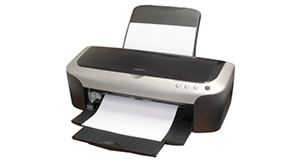
Epson DX4000 overview
Number of problems: 34
Number of solved problems: 2
Number of unsolved problems: 32
Problem resolution: 6%
Compared to other printers:
Epson DX4000: Likelihood of getting a solution
Ranking: 140th out of 413
Most likely to get a solution:
Canon PIXMA 210 - problem resolution score of 100%
Canon PIXMA 210 - problem resolution score of 100%
Least likely to get a solution:
Brother DCP330C - 0 out of 19 problems solved
Brother DCP330C - 0 out of 19 problems solved
Solved problem list for the Epson DX4000
(Click on a problem to see the solution)i have the same status paper jam, but there is no paper jam in printer
BANDING PERSISTS EVEN AFTER CLEAN AND INK CHANGE
Unsolved problem list for the Epson DX4000
(Click on a problem to comment or help)unwanted vertical lines on photo prints
Showing paper jam that is definitely not there. Cartridge box has stopped moving.
how to print re-alinement page
Epson DX 4000 processes paper through the printer but no narrative appears. I have reinstalled progammme, checked heads, cleaned the and run test check, but still no printing. Many sheets of paper still blank have gone through the machine. My cartridges are not standard epson but have wourked fine in the past. Can you help?
prints seem to have too much blue in them
I bought a new computer with windows 7 and office 2010, printer prints black
Only prints in green. Changed all cartridges and cleaned heads 6 times
misses words and lines of text out
paper not feeding straight
Vertical banding about 6mm apart. Blue seems not to be printing at all
Solutions for the Epson DX4000
0 people also had this problem.
Problem: i have the same status paper jam, but there is no paper jam in printer
There are 0 comments on this problem.
Solution 1: i think its an epson con,printed 4 pages with new cartridges [epson ones] got the paper jam remark on the screen and the only way to get rid of it was to take all the cartridges out and replace with new ones .the old ones were 90 percent full so i think epson have gone over the top with this new software they have put on the chips it has not got a clue what level the inks at so it throws up there is a paper jam when there is no paper in the dam thing by the way my printer is the sx515w but software may be in other printers as epson want us to spend more and more money , i have sent my printer back as 80 pounds for 4 A4 prints is to expensive at 20 pound a sheet sorry ive only got the paper jam sorted but it may come back at any time. GET RID!!!
0 out of 0 people found this solution helpful.
Was this solution helpful?
There are 0 comments on this solution.

0 people also had this problem.
Problem: BANDING PERSISTS EVEN AFTER CLEAN AND INK CHANGE
There are 0 comments on this problem.
Solution 1: Had the same problem and nothing would fix it. Dumped it and bought a different brand that was cheaper then a new set of Epson inks even.
0 out of 0 people found this solution helpful.
Was this solution helpful?
There are 0 comments on this solution.
Jump to page:
[1]


